
See it. Understand it. Decide.
PERCARIS is built around a simple human-in-the-loop workflow: detect active AI-agent activity, surface useful context, and let you decide whether the agent should continue running.
See How Percaris Works
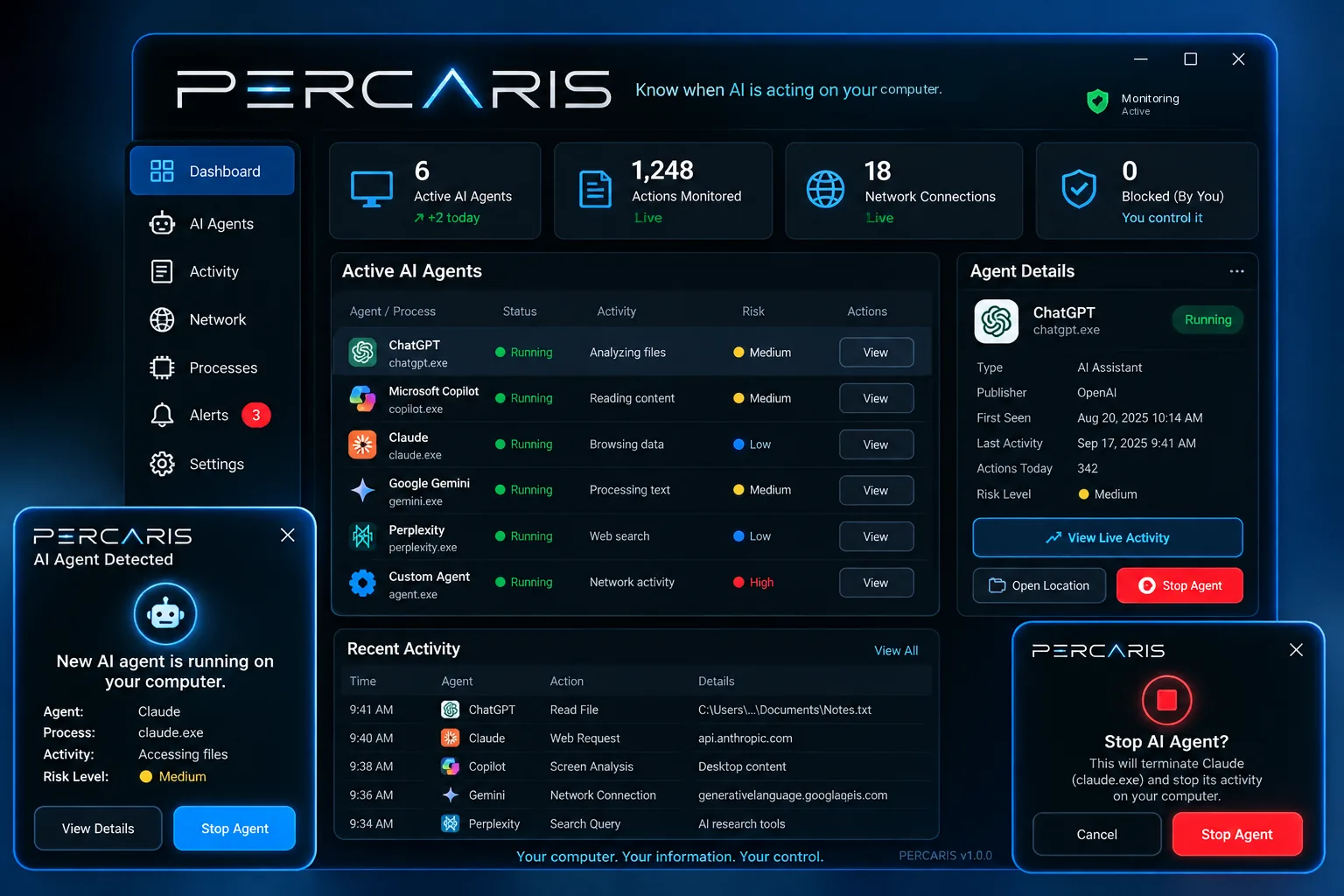
PERCARIS runs on your Windows desktop and detects active AI agents the moment they start. See how it helps you tell the good agents you authorized from bad agents hiding in free downloads or fake extensions, and stop the unwanted ones with one click.
Read the video transcript
Why it matters (0:00)
AI agents are going mainstream. They don’t just answer questions. They click, type, open your files and browse the web, right on your PC.
The good agents (0:08)
And that’s the point. You want them working for you. So you give them permission. Access to your files, your browser, and your apps.
The bad agents (0:15)
But here’s the problem. As more people use AI agents, bad actors are building their own. Bad agents and bots that hide inside a free download, a fake browser extension, or an app that seems too good to be true. Once one is running, it can look just like the agents you trust. Opening files, moving through your browser. Quietly. So, would you know the difference?
Meet Percaris (0:36)
That’s why we built Percaris. Percaris watches your Windows desktop for active AI agents, so you always know which agents are running, and you decide which ones belong.
How it works in five steps (0:46)
Here’s how it works, in five steps. One, watch. Percaris runs on your desktop, watching for AI agent activity. Two, detect. The moment an agent becomes active, you get an alert, and it shows up in your dashboard. Three, review. See the agent’s identity, its status, what it’s doing, and the context around it. Four, decide. If it’s an agent you know and authorized, let it keep working. Five, stop. If you didn’t authorize it, stop it with one click. Your call, every time.
Real-life examples (1:17)
Here’s what that looks like in real life. At home, an unknown agent starts opening your tax documents. Percaris alerts you, and you stop it. Running several PCs? Know which assistants are yours on each one, and spot the one that isn’t. For a small business, see when an agent you never approved shows up on a team member’s desktop. And for IT teams, Percaris brings agent visibility to every company desktop.
The advantages (1:43)
With Percaris, you get an alert the moment an agent starts, a clear view of what it’s doing, and a one-click Stop. Monitoring runs locally on your desktop, without uploading your private files. And to be clear, Percaris isn’t antivirus, and it never blocks agents on its own. You stay in control.
Plans (2:00)
Every plan includes the complete Percaris software. Personal, for 1 PC. Power, for up to 5. Small Business, for up to 25. And Enterprise, for 26 and beyond. Pay yearly, and you save two months. Let your good agents work. Catch the ones you never invited. Get Percaris today, at percaris.com.
Five clear steps from detection to decision.
-
Watch
PERCARIS monitors the Windows desktop for active AI-agent activity.
-
Detect
When relevant agent activity is identified, PERCARIS surfaces it in the dashboard.
-
Review
You inspect the available agent identity, status, activity, and context.
-
Decide
If you recognize and authorized the agent, allow it to continue.
-
Stop
If you did not authorize it, use the Stop control to terminate it.
Human oversight stays at the center.
PERCARIS surfaces active AI-agent activity and available context. You decide whether the agent is authorized. If it isn't, use Stop.
Put visibility on your Windows computer.
Start with PERCARIS and keep the final decision in your hands.